WHAT DOES IT DO?
A LIBRARY WITH PHOTOS
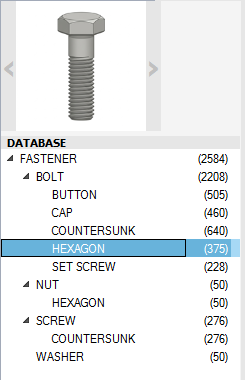
Parts come from the cloud library and sit in a category tree with their counts. Pick a category to filter the list; the selected part's photo shows at the top of the panel.
FILTERS AND NAME CHAIN
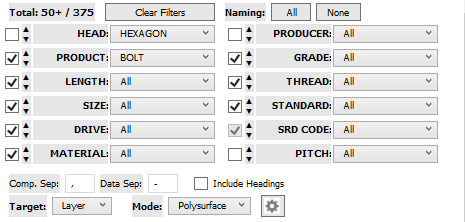
Product, head, size, length, material, grade, standard… the list narrows as you pick. The part name is built from these headings: tick which go into the name, reorder them with the arrows, set the separators in the boxes.
INTO THE SCENE IN ONE CLICK
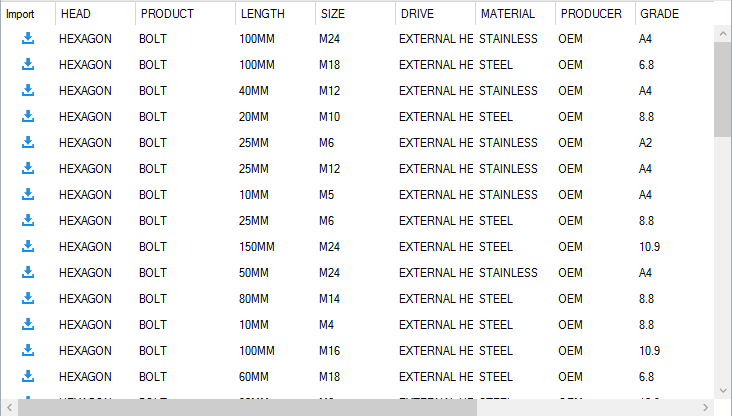
Press the download icon in the list: the part arrives with the name you built, in the layer tree for its type (e.g. FASTENER > BOLT), as a Block or a Polysurface.
ALSO
IN EVERY MODULESign-in, one-click update, diagnostics and an English / Turkish interface; all under the gear (SETUP) in the panel.
 SRD DATABASE
The installer sets up this module plus the shared core. To add another module, run the installer again or use the multi-module download.
WINDOWS · RHINO 7 · FREE ACCOUNT AFTER THE FIRST WEEK
SEVERAL MODULES: DOWNLOAD TOGETHER